Meta occasionally changes labels and screen layout. Follow the intent of each step if the wording in your window differs slightly.
Start in Echo
Choose the route that preserves access to your existing mobile app.
Open WhatsApp settings
In Echo, open Settings, choose WhatsApp, then select Add connection. You will arrive at the connection options shown here.
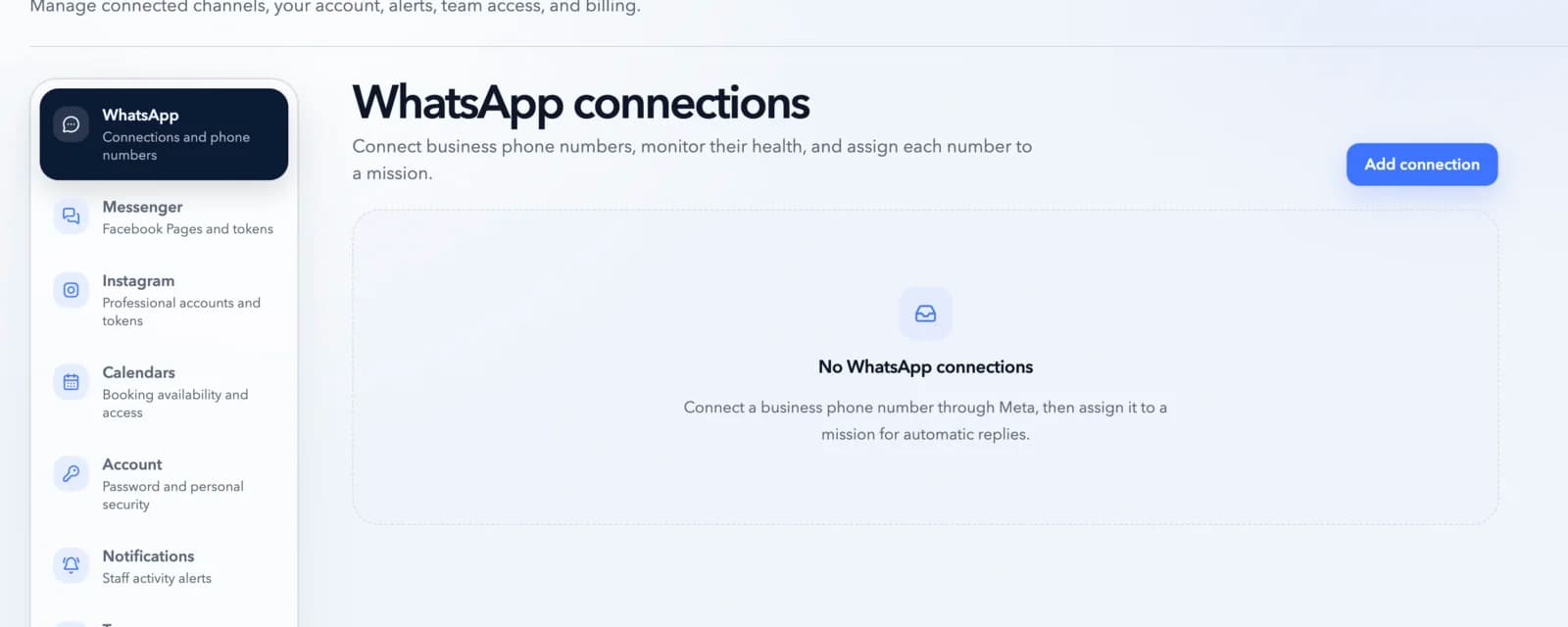
Start from Settings → WhatsApp in Echo. Choose WhatsApp Business App
Select Use WhatsApp Business App. This starts Meta Coexistence, which keeps an eligible number available in the WhatsApp Business mobile app while Echo uses it too.
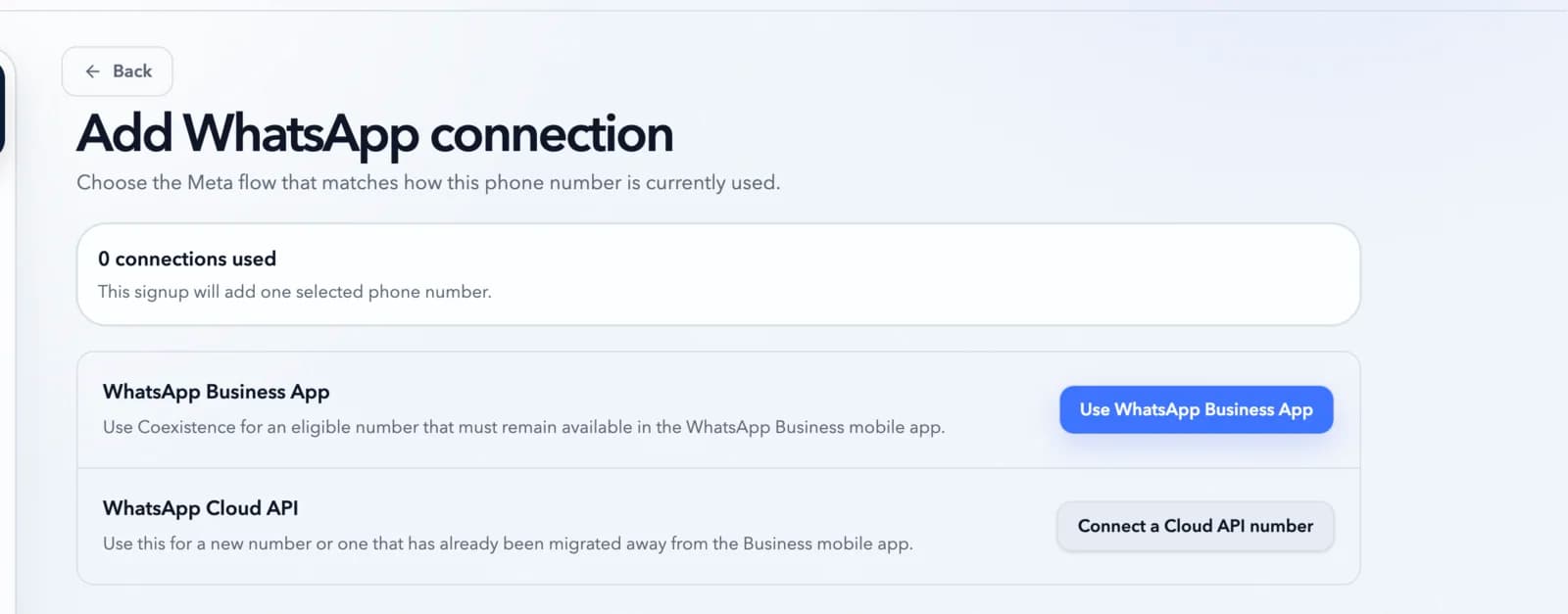
Choose the Business App option for an existing mobile-app number.
Complete setup with Meta
Meta verifies ownership and asks which business assets Echo may use.
Log in to Facebook
A Meta window opens. Log in with the Facebook account that can manage the business and its WhatsApp assets. Echo never receives your Facebook password.
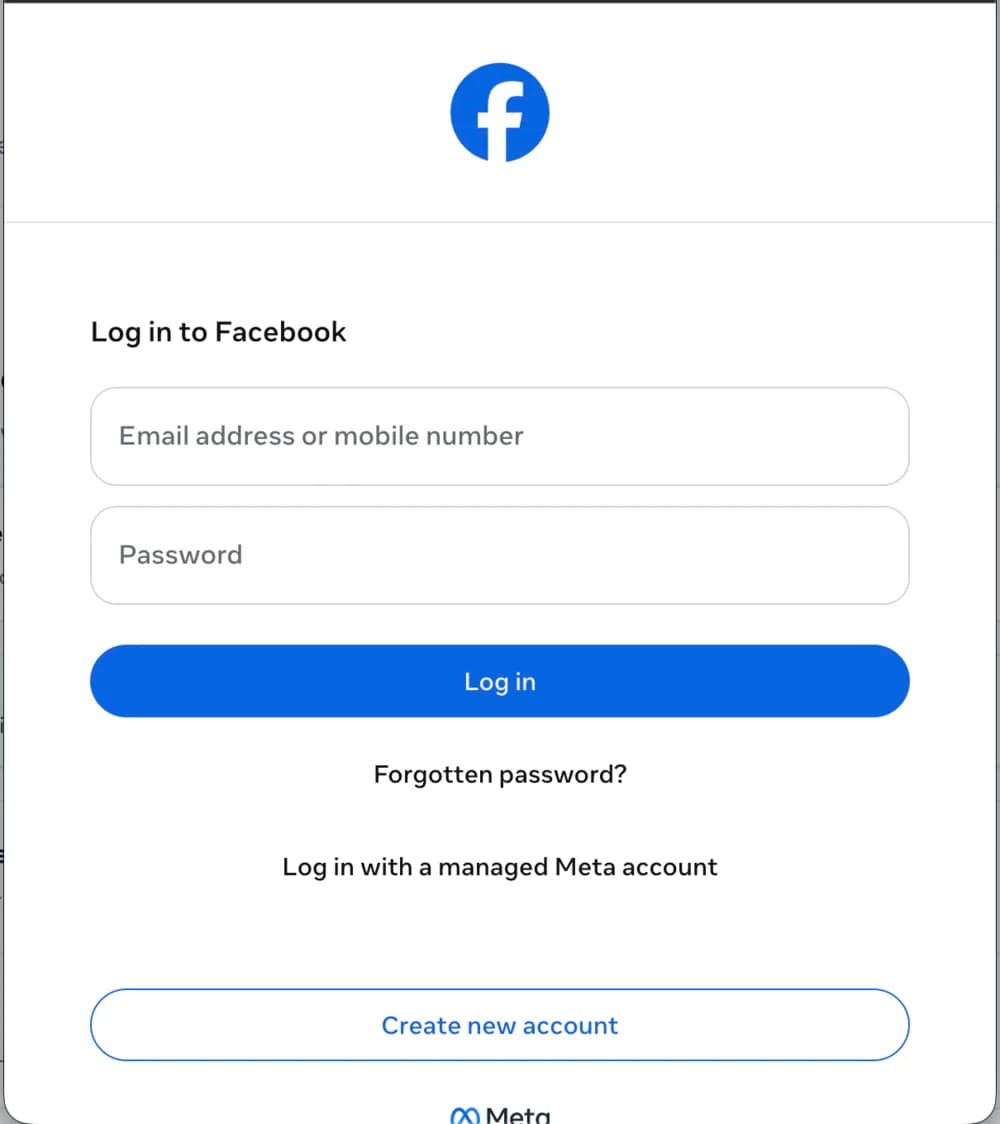
Use an account with access to the correct Meta business portfolio. Continue the Meta onboarding
Review Meta’s introduction and terms. Meta may show NextRound Moment+ as the partner name for Echo in this window. Select Continue when the details are correct.
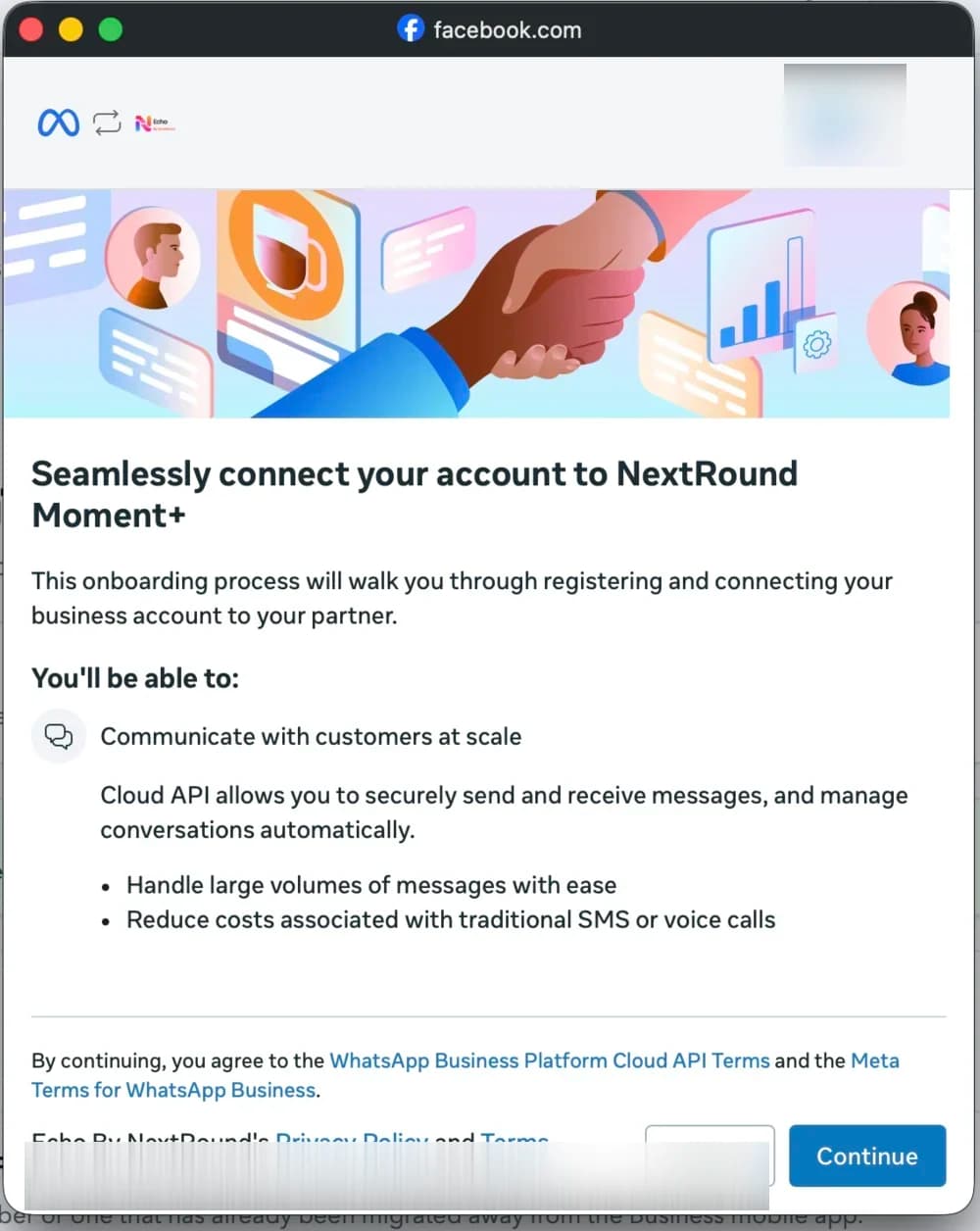
Meta explains the access Echo uses behind Coexistence. Select your business assets
Choose the business portfolio that owns the number, then select the option that connects your existing WhatsApp Business App account.
Choose “Connect a WhatsApp Business app.” Creating a Cloud API-only account will not keep this number available in the mobile app.
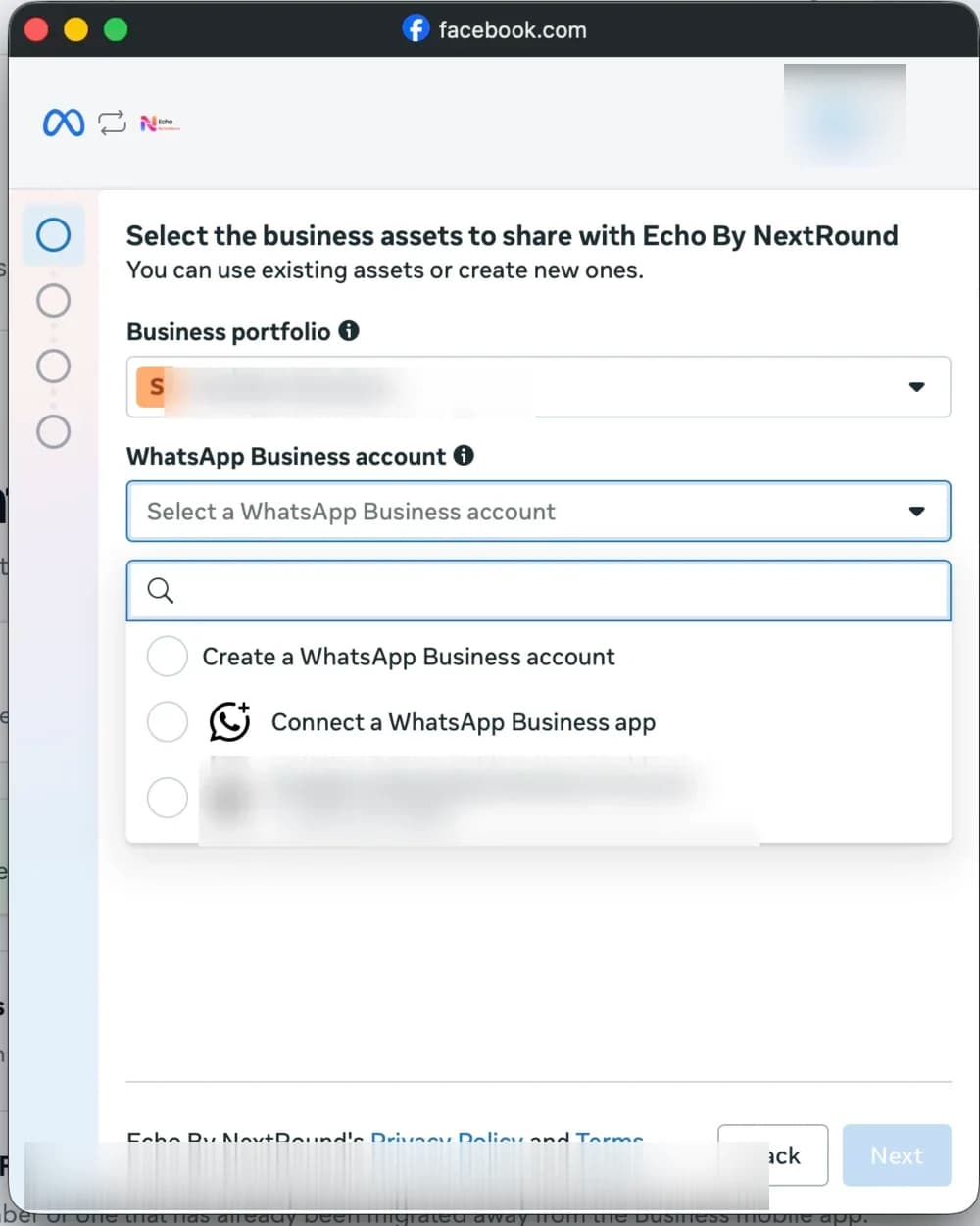
Select the business portfolio and the Business App connection option. Complete your business profile
Confirm the business name, country, and website. These details belong to your Meta business profile, so use accurate customer-facing information.
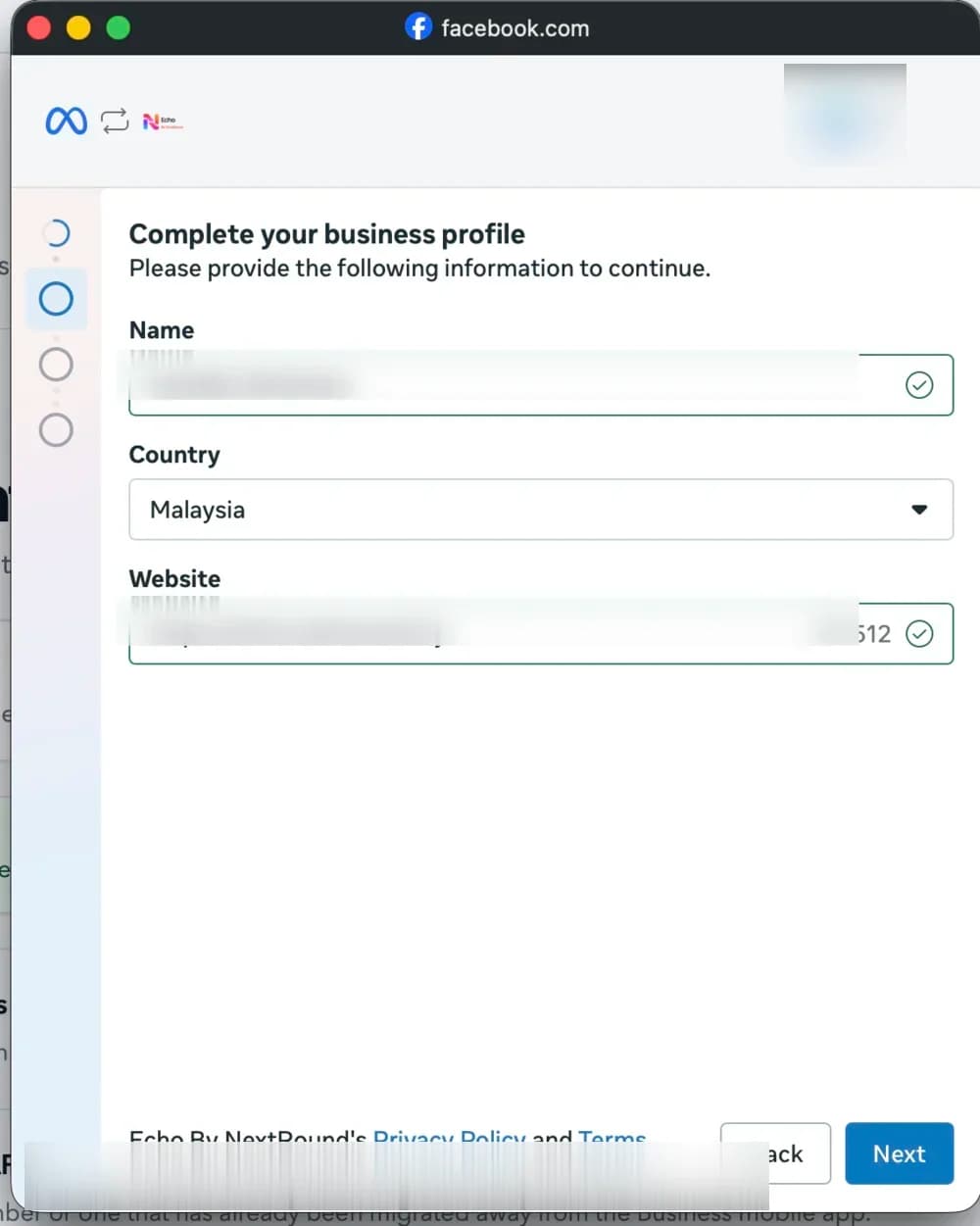
Review every field before continuing. Add and verify your existing number
Choose Use a new or existing WhatsApp number, select the number you use in the Business app, and follow Meta’s text-message or phone-call verification.
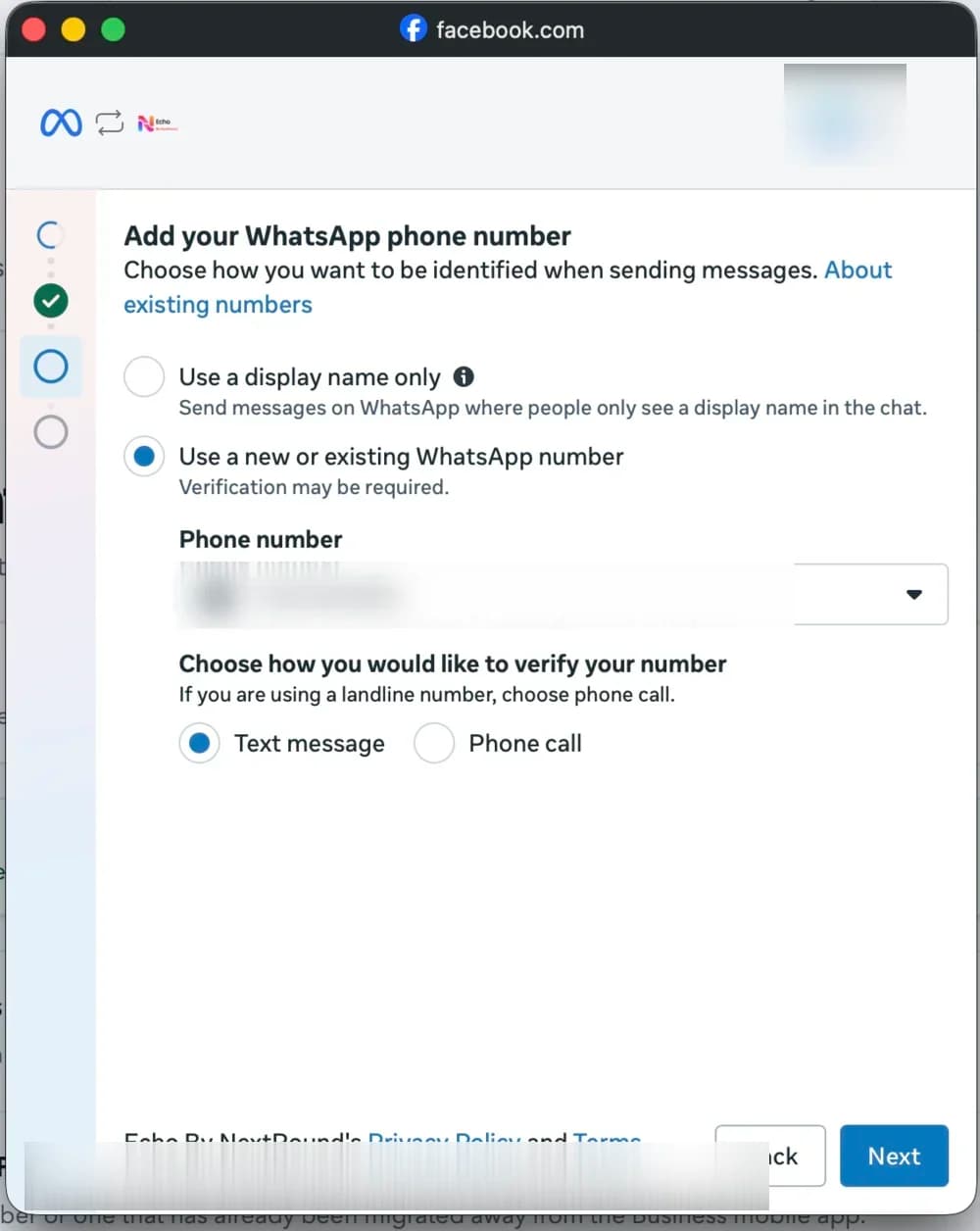
Keep the phone nearby in case Meta asks for a verification code. Confirm the requested permissions
Review the business and WhatsApp account being shared. Confirm only when both belong to the workspace you intend to connect.
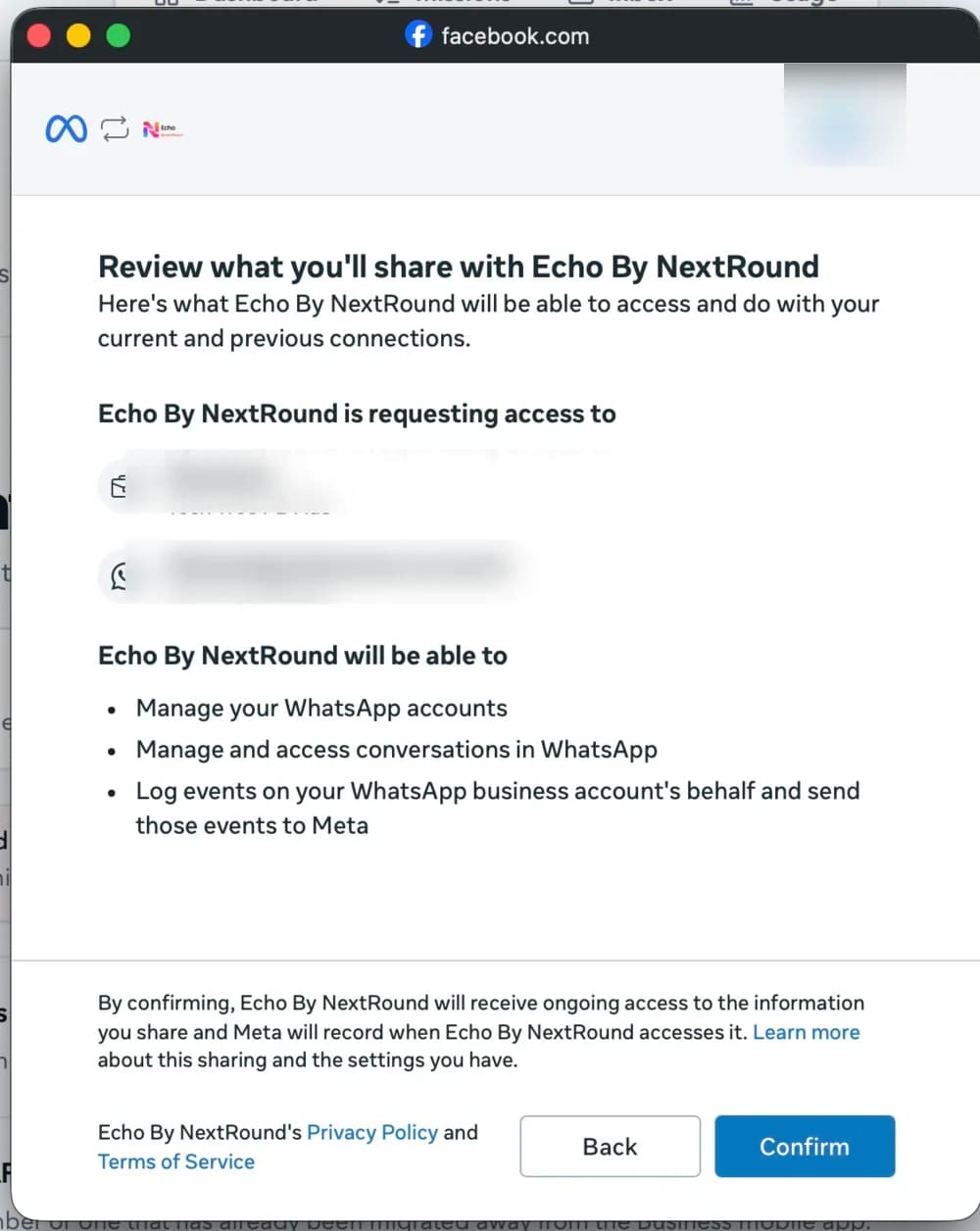
The permissions let Echo manage the selected WhatsApp account and conversations.
Finish in Echo
Let Meta hand the approved number back to Echo, then make it ready for customers.
Finish and return to Echo
Select Finish in Meta. Meta may use the same NextRound Moment+ partner name on this confirmation screen. Return to Echo and leave the page open while the selected number is finalized. The connection will appear in WhatsApp settings when it is ready.
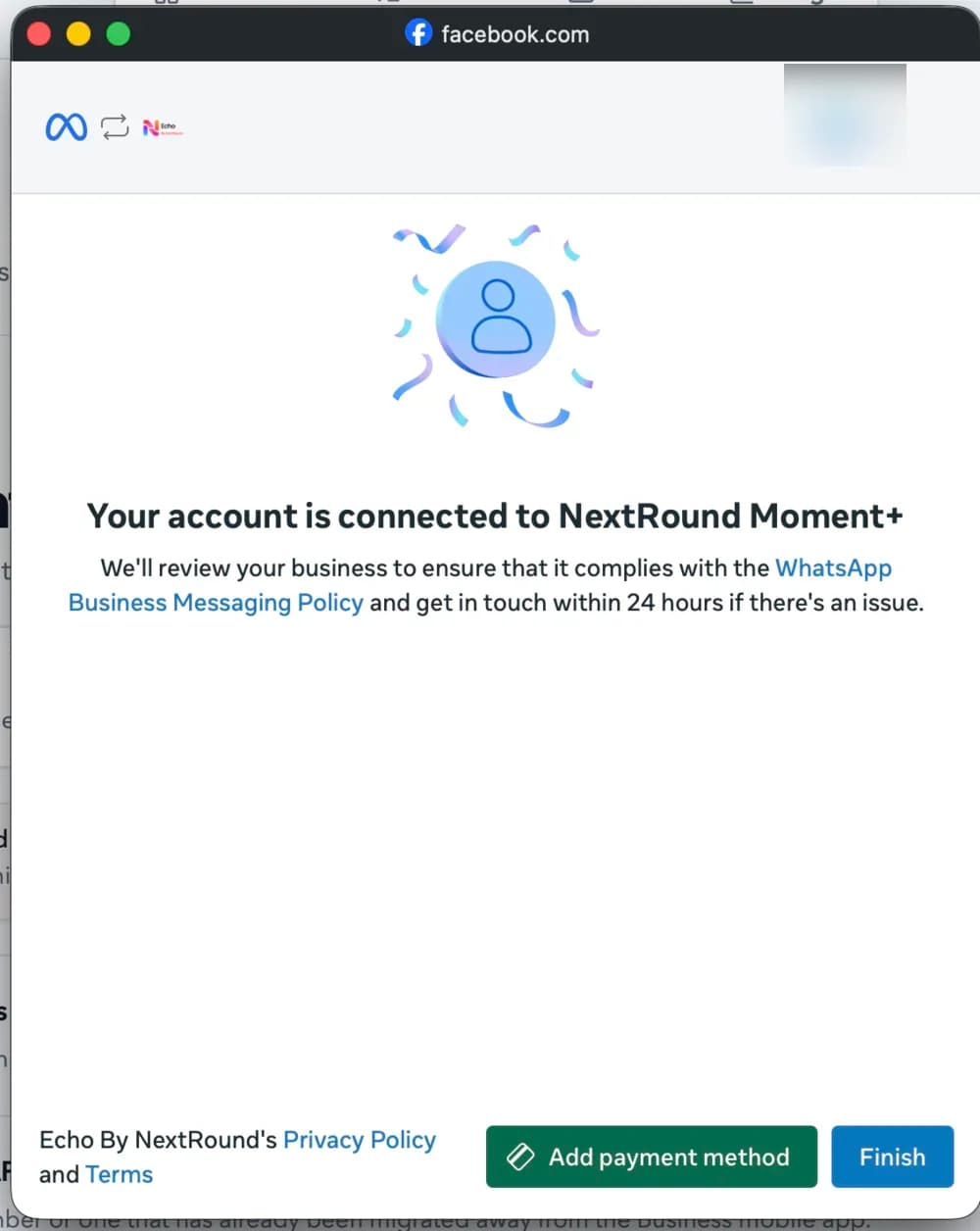
Finish closes the Meta flow and lets Echo complete the connection.
Assign the number to a mission
Open Manage beside the new connection, select the mission that should answer this number, and save the assignment.
Make the mission Live
A Draft, Testing, Paused, or Archived mission will not send automatic replies. Review it, then change its status to Live.
When setup pauses
Get the flow moving again.
Meta signup can be safely restarted. Echo does not add a connection until Meta completes the flow.
No Meta window opened
Allow popups for Echo, then choose Use WhatsApp Business App again.
Signup was cancelled
Return to Echo and restart the flow. No connection changes are made when Meta signup does not finish.
You cannot see the business or number
Ask a Meta business administrator to grant your Facebook account access to the correct portfolio and WhatsApp account.
Meta says the number is not eligible
Confirm the number is active in the WhatsApp Business app and that Meta offers the Business App connection option for it. Do not migrate it to Cloud API just to continue this guide.
Echo is still connecting
Wait a few minutes, then refresh WhatsApp settings. If it still has not completed, restart signup and check that the same business and number were selected.
Ready to connect?